Navigate InquiryPoint
InquiryPoint offers a general search and inquiry view on the main page and an information panel that has unique options based on what you are viewing. You can see the currently signed in user in the upper-right corner of the main page (for example, Jesse Doe in the below image).
 View image

The Projects tab is currently in pilot and available only to select users.
Quick Access menu details
The Quick Access menu includes various links and resources.
| Select this icon... | To use the Quick Access menu. |
|---|---|

|
Quick Links to frequently used resources (Client360 training and your team's selections) |

|
Reports (work with reports in a new product tab) |

|
Federated Search (Search for Knowledge in a new browser tab) |

|
Defect |

|
Client Migration |
When you select an inquiry, your Quick Access options change.
| Select this icon... | To view this related to the selected inquiry from the Quick Access menu. |
|---|---|
|
|
Quick Links |

|
Client information. Here, you can view location details, including the client's country, and other additional attributes. |

|
Contacts (eCRM, Client Contacts, Account Team) |
|
|
Federated Search (Search for Knowledge in a new browser tab) |
|
|
Defect |

|
Video Links |
Search details
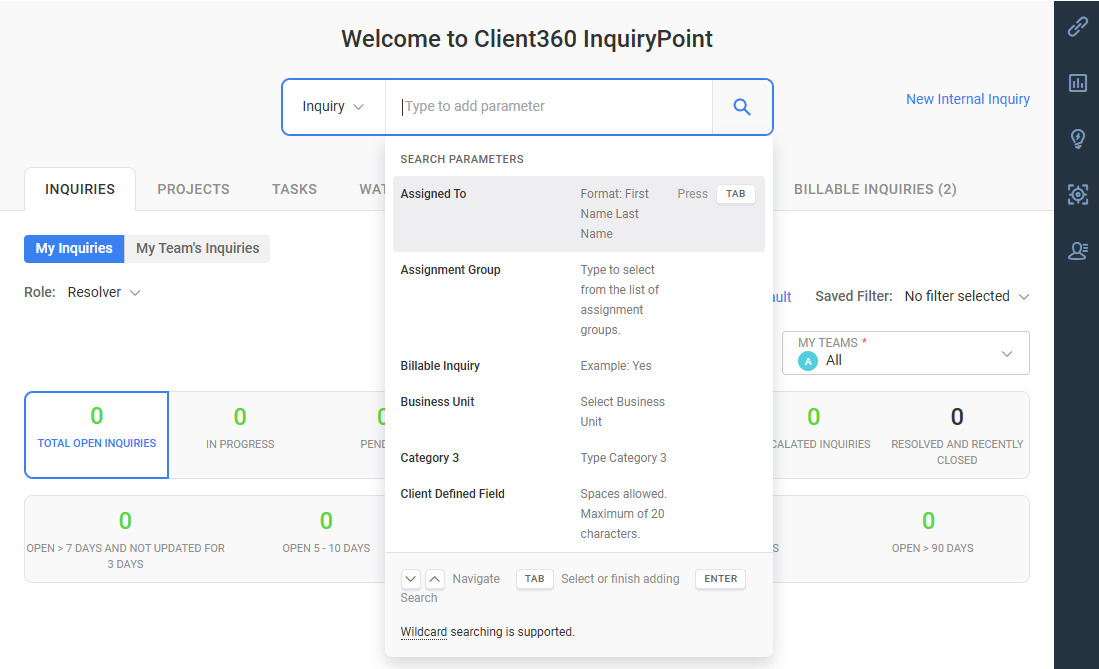
The Projects tab is currently in pilot and available only to select users.
Use the search box to find information related to Clients, Inquiries, Tasks, or Projects. Select one of the options from the dropdown menu and select a specific parameter to enter detailed search criteria into the Type to add parameter search box. Refer to Search for a client for more information.
Search results appear in a separate tab named by your query text followed by "- Search Results." There is no limit to the number of tabs you can open in this window. However, as a best practice, we recommend limiting the number of tabs so that you can easily navigate between them.
Navigate my Dashboard
Use the Dashboard to access inquiries, projects, and tasks. Use the various tabs at the top of the dashboard and the activity tabs within each tab as well as the search bar within the dashboard to filter your Inquiries.
The Projects tab is currently in pilot and available only to select users.
Inquiries
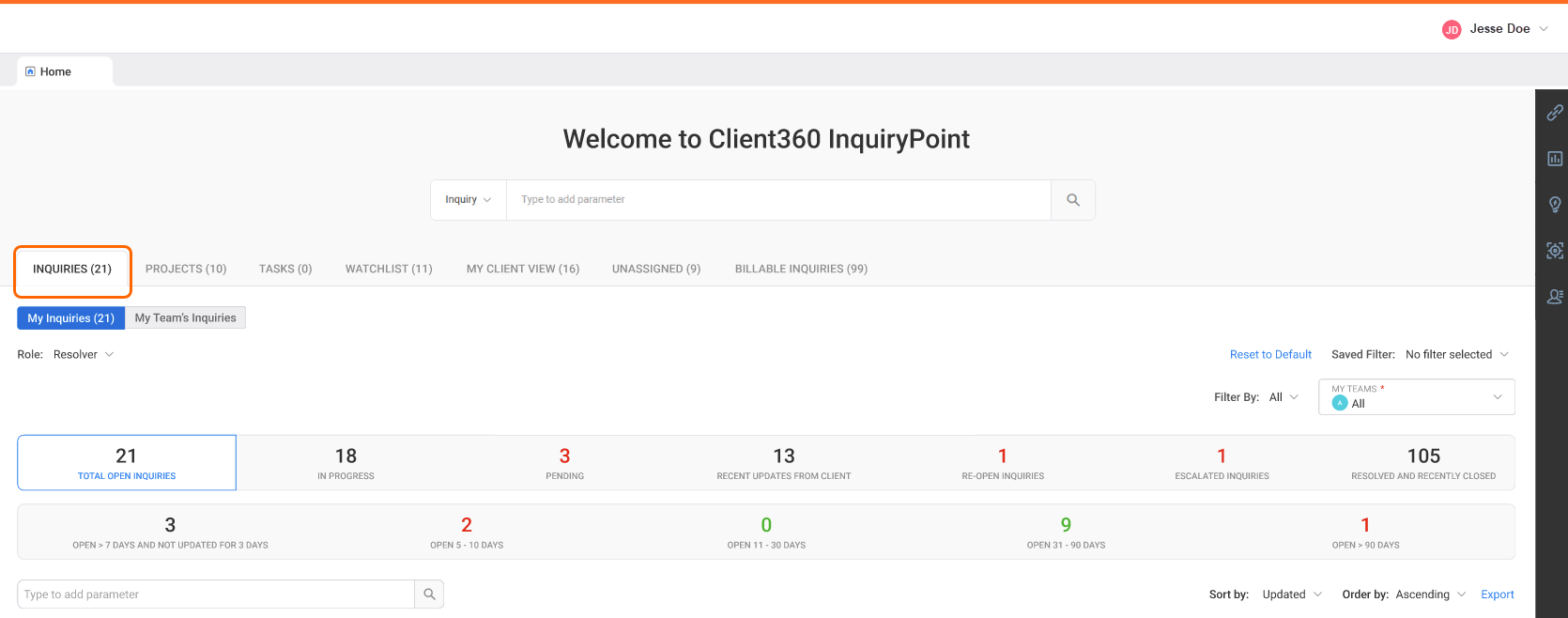
Select Inquiries to view all inquiries assigned to you or your team.
Select the My Inquiries or My Team's Inquiries toggle to filter.
Projects (permission-based)
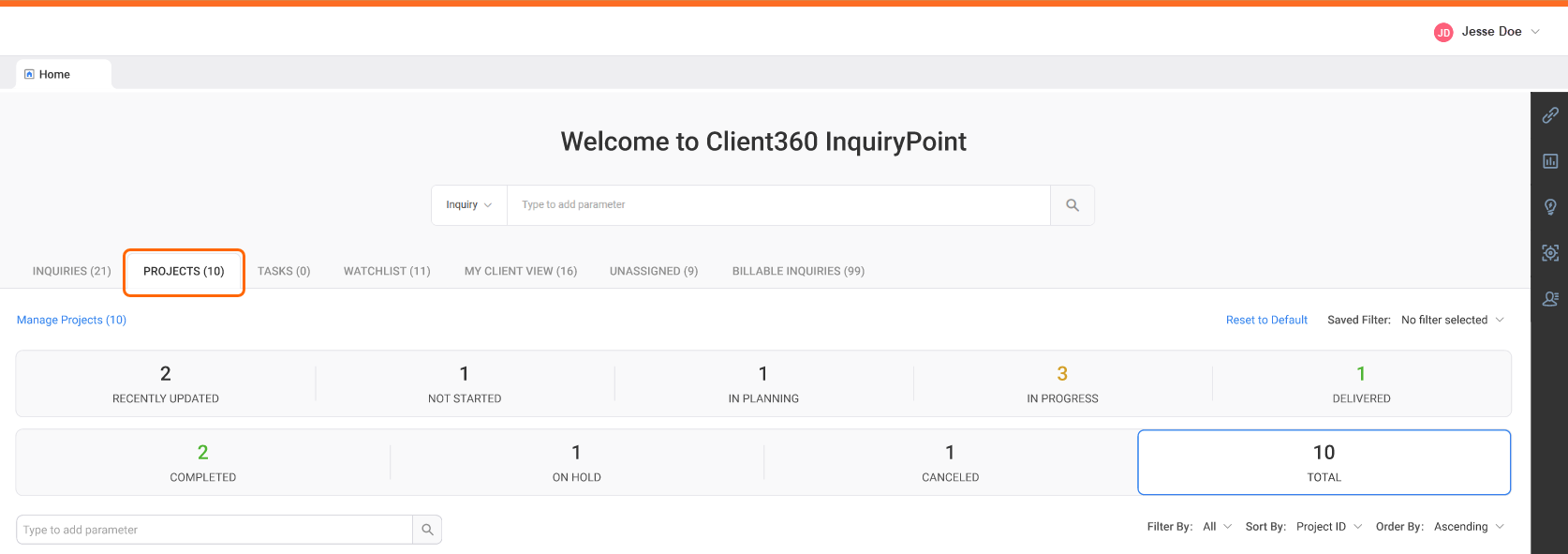
The Projects tab is currently in pilot and available only to select users.
Primarily designed for Account Managers.
Select Projects to view all projects you are managing.
Displays only if your administrator grants you access.
Select projects from the Manage Projects menu to display them in the Projects tab.
Tasks
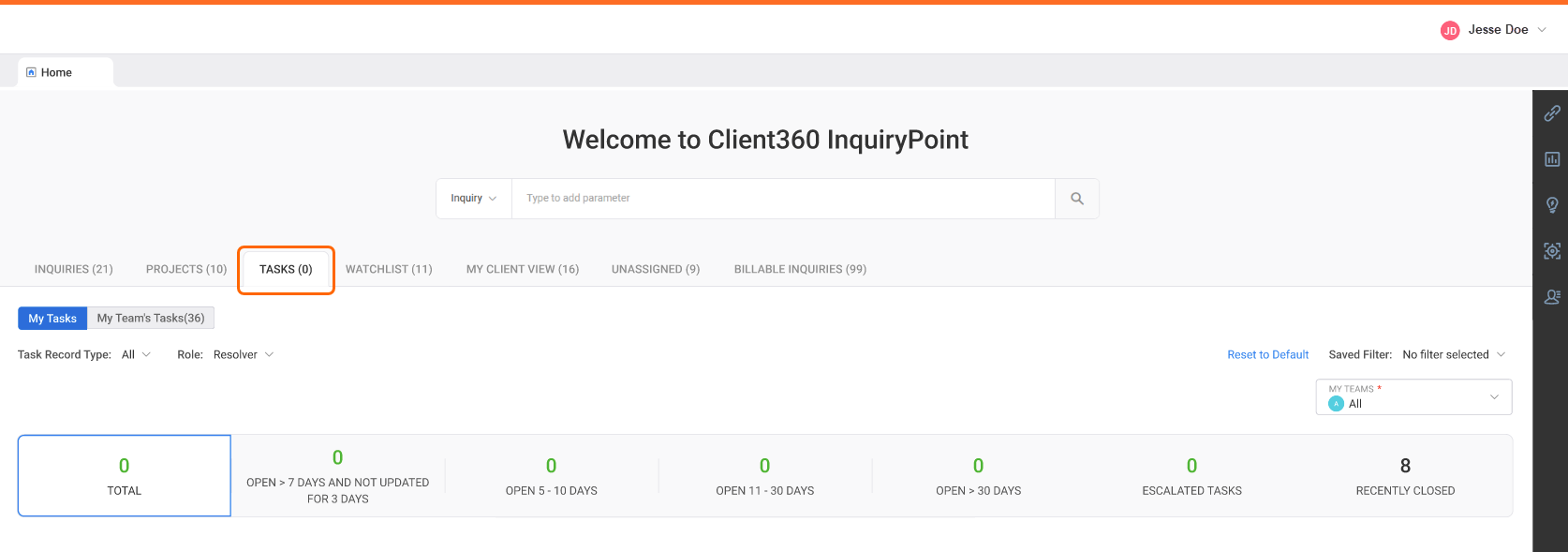
Fiserv uses tasks to distribute work within an inquiry.
Select Tasks to view all tasks assigned to you or your team.
Select the My Tasks or My Team's Tasks toggle to filter.
Watchlist (permission-based)
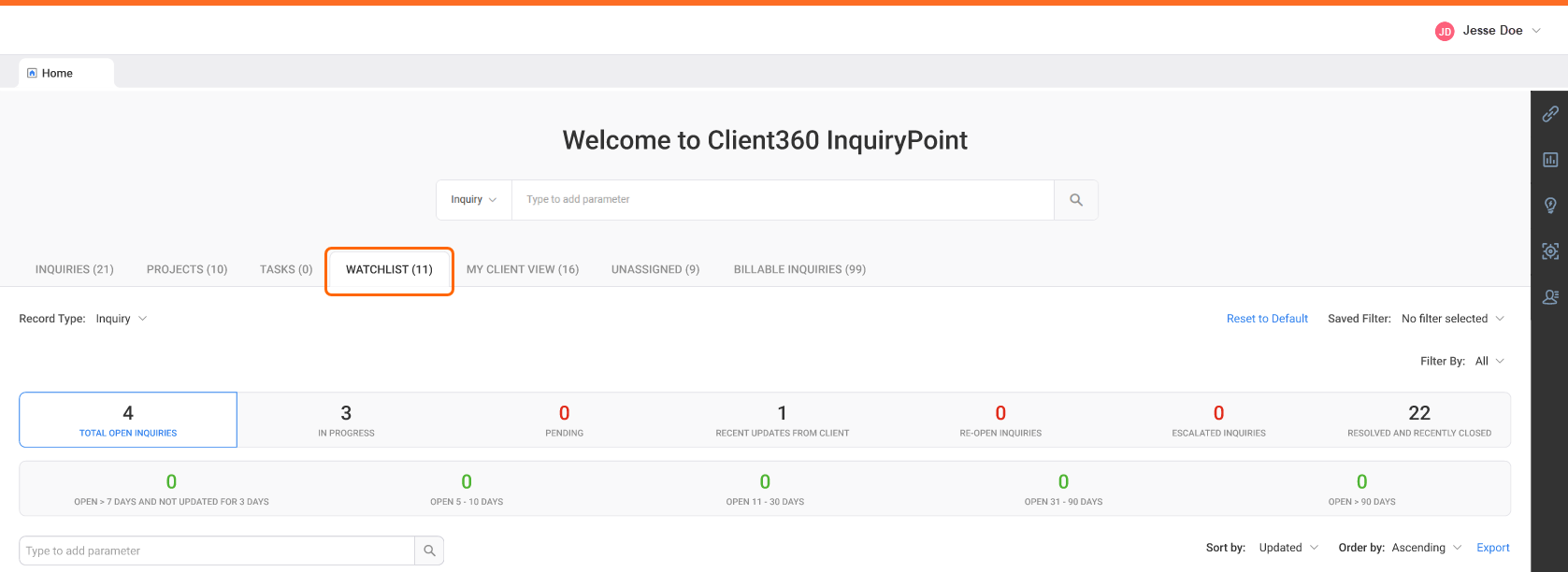
Select Watchlist to view all inquiries for which you are a watcher.
Displays only if your administrator grants you access.
Use the Watcher Added By filter to view inquiries where a Fiserv associate added you as a watcher and those where a client did.
My Client View
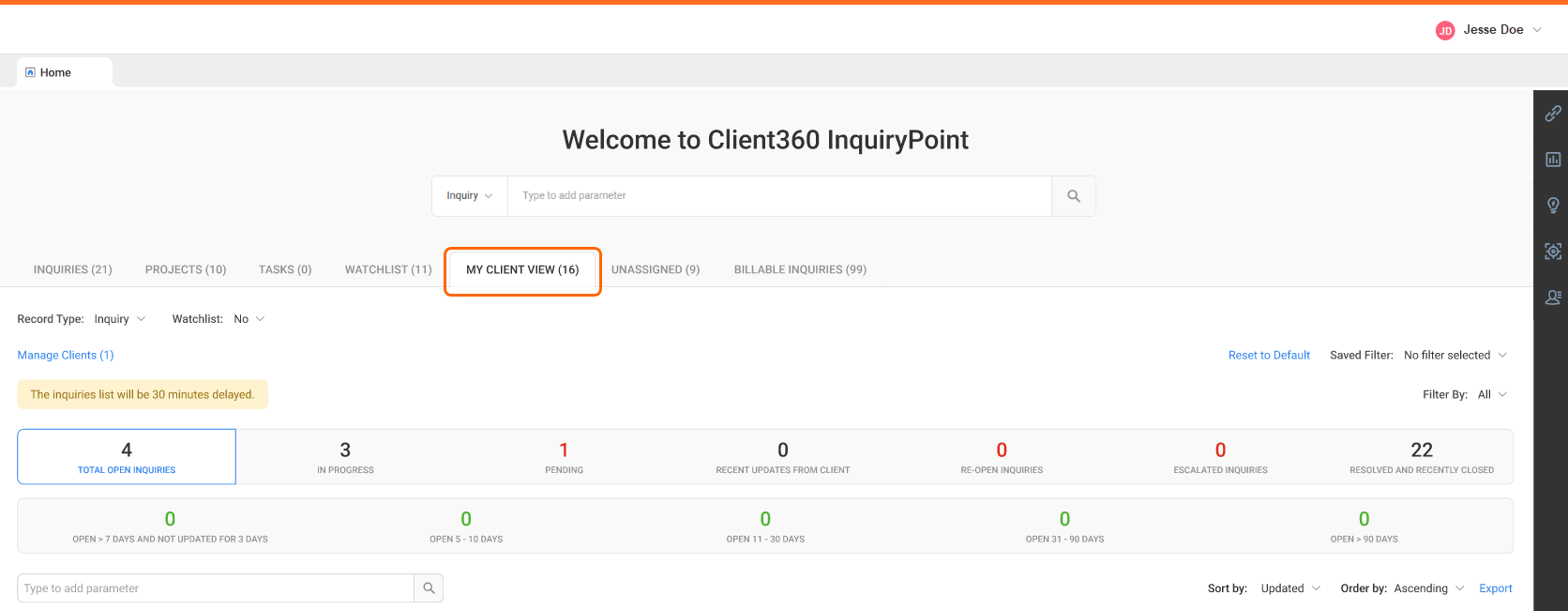
Select My Client View to display the clients with whom you are associated in eCRM and their associated inquiries and projects.
The Projects tab is currently in pilot and available only to select users.
Primarily designed for Relationship Managers and Account Managers.
Refer to Navigate the My Client View tab for more information.
Unassigned
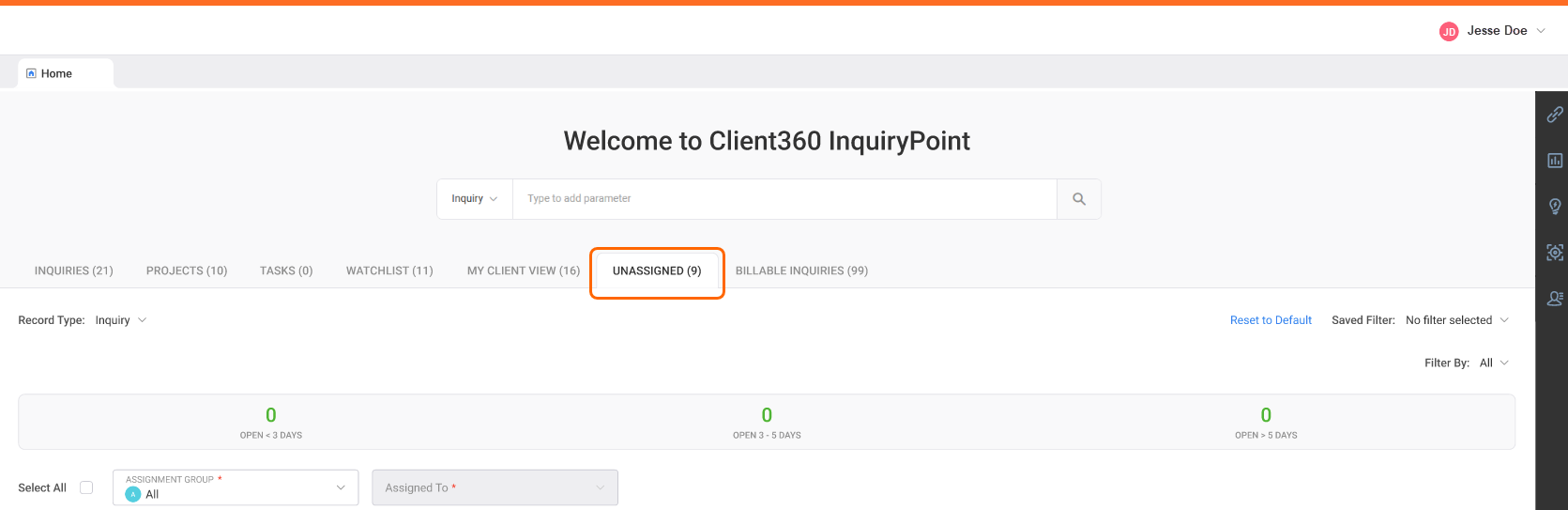
Select Unassigned to view Inquiries and tasks that Fiserv has routed to one of your assignment groups but not to a specific person.
Billable Inquiries
Select Billable Inquiries to view all billable inquiries for your group, if you belong to a billing group within our organization.
These are inquiries for which Fiserv bills a client separately from their usual services. If you do not belong to any billing group, this tab does not display for you.
Use the filter options at the top of the dashboard to filter by reporting category and team or assignment group.
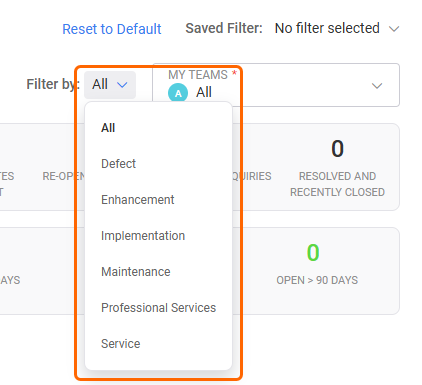
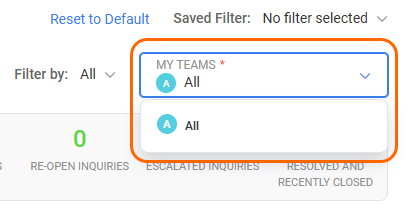
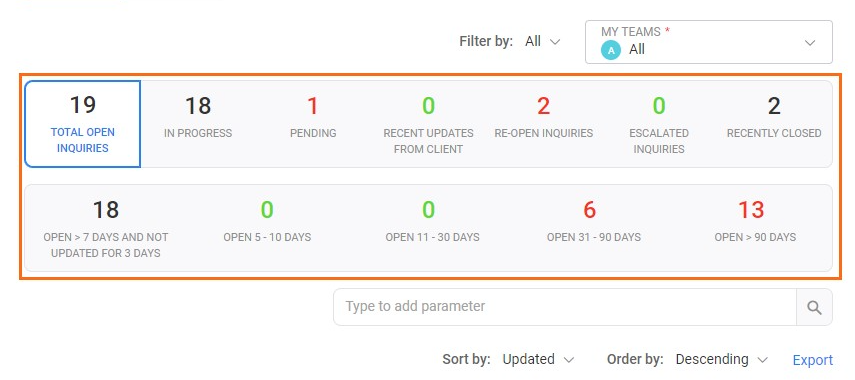
Use the various buckets to filter by state or status, such as how long an inquiry or task has been open.
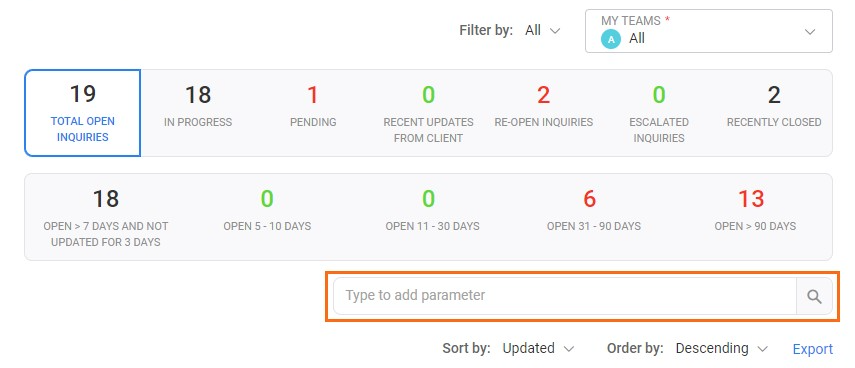
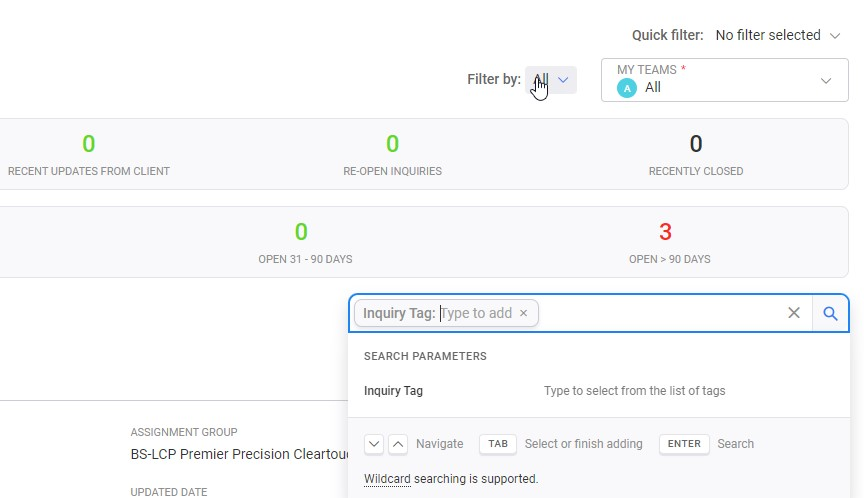
Use the search bar within the dashboard to filter by a specific parameter, such as the client name.
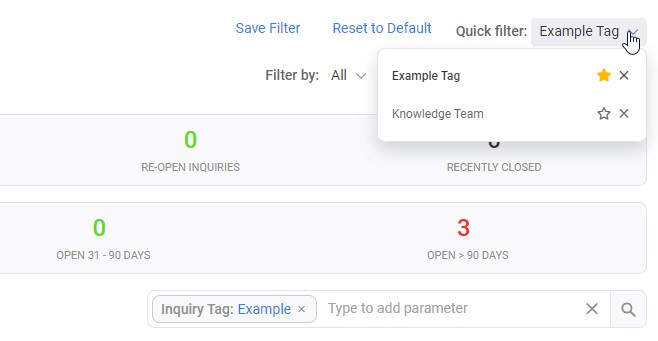
Save your filters as Quick filters when you find a configuration that you like.
Save Filter
-
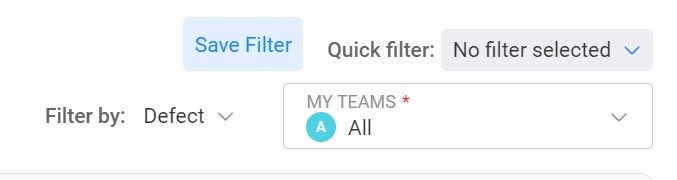
Select a filter on the Inquiry Dashboard. You can filter by reporting category, team, etc.
If you use the Inquiry Dashboard parameter search, you must complete the search before you can save your filter. -
Select Save Filter.
-
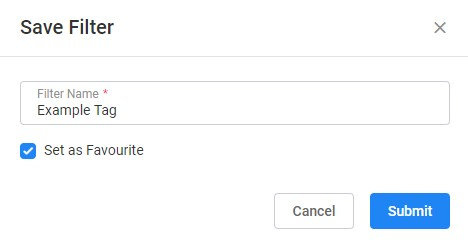
In the new window, enter a name for the new filter.
You can set the filter as a Favorite, and it will appear by default when you next launch InquiryPoint. -
Select Submit.
After you save a filter, it appears in your Saved Filter list. From the list, you can update your favorite filter, quickly switch between filters, and remove filters.