Navigate the My Client View tab
The Projects and Implementations module is currently in pilot and available only to select users.
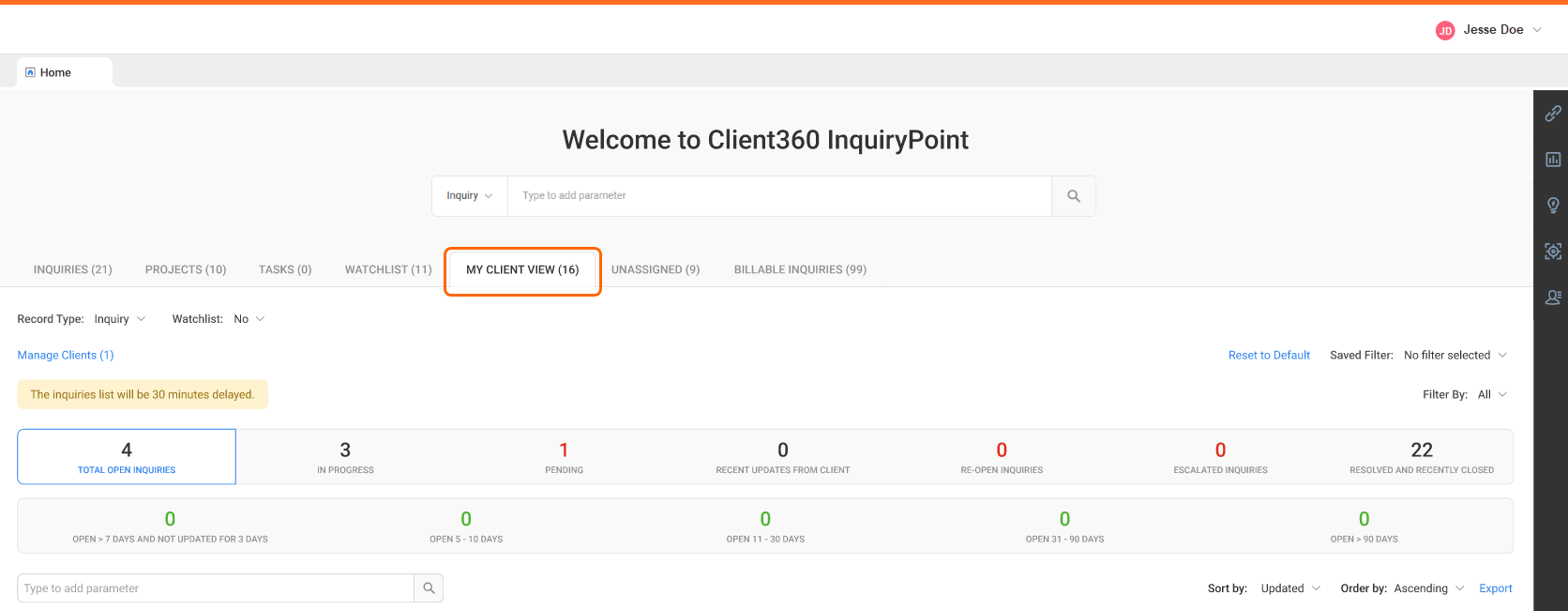
The My Client View tab lets Relationship Managers and Account Managers view their associated clients, inquiries, and projects from the inquiry dashboard.
Procedures
 View client data
When first navigating to this tab, client data is not visible. To view client data:
-
Select Manage Client to add clients to your dashboard.
-
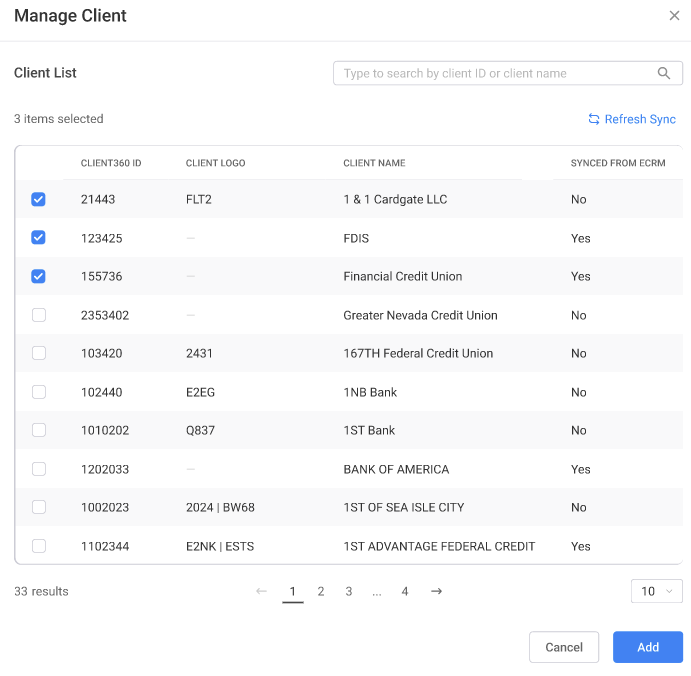
In the Manage Client window, check the boxes next to your required clients.
-
Select Refresh Sync if your client list in eCRM has changed and you want to add the newest clients to your InquiryPoint dashboard.
-
Select Add. Your clients' inquiries or projects appear on your dashboard, depending on your Record Type selection.
The Projects and Implementations module is currently in pilot and available only to select users.
 Search for inquiries
To search for an inquiry within this tab:
-
Select Inquiry from the Record Type dropdown menu.
-
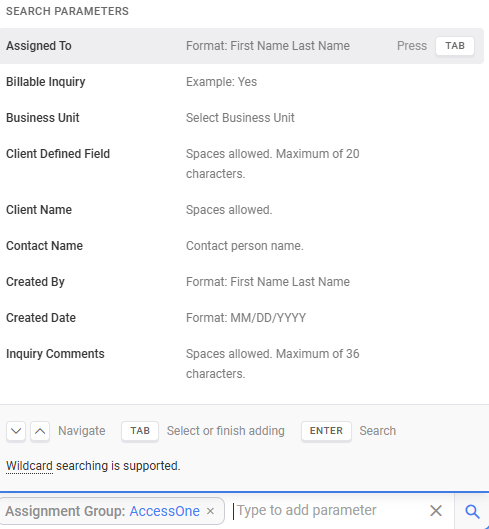
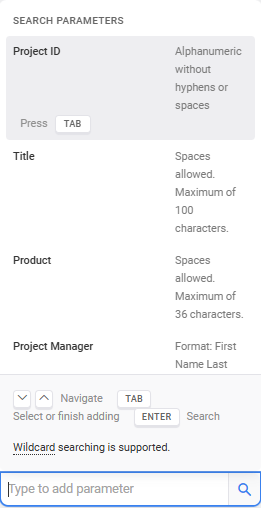
Select a parameter to search by from the Type to add parameter field.
-
Enter your parameter details.
-
Select
 (Search) or press Enter.
 Search for projects
The Projects and Implementations module is currently in pilot and available only to select users.
To search for a project within this tab:
-
Select Project from the Record Type dropdown menu.
-
Select a parameter to search by from the Type to add parameter field.
-
Enter your parameter details.
-
Select
(Search) or press Enter.
 Sort and order your list
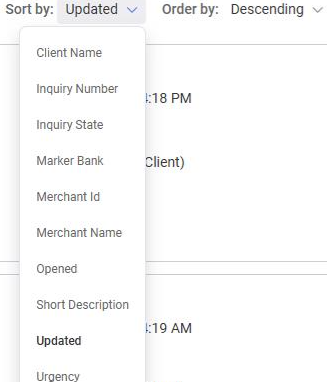
To sort or order the list by certain parameters, select the parameters in the Sort by and Order by dropdown menus. You can only sort or order by one parameter at a time.
 Save a filter
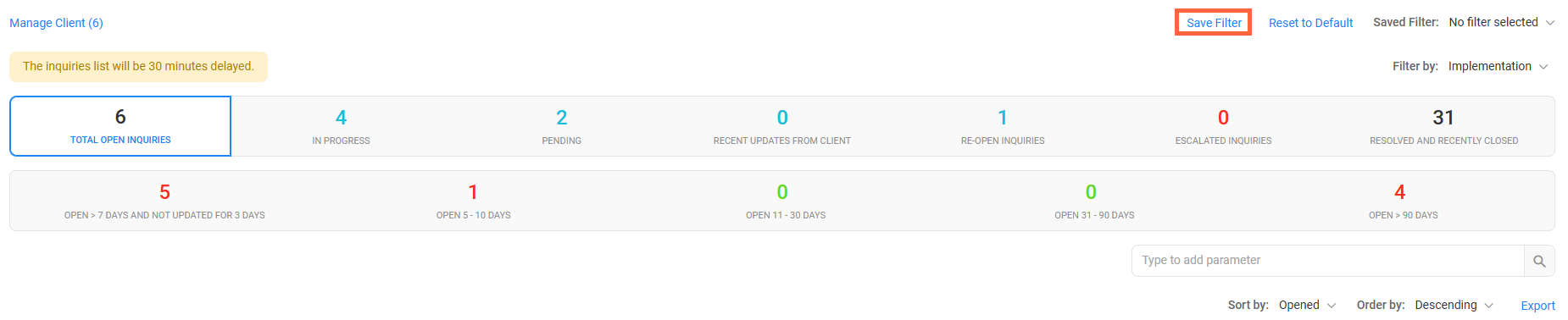
When you sort and order an inquiry list, or use the Filter by option, you can save that filter for easy access later.
To save a filter:
-
Sort and order the inquiry list using your desired parameters.
-
Select Save Filter.
-
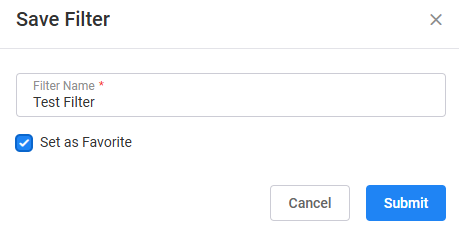
Name your filter and select Set as Favorite if you want to add the filter to your favorites list.
You can only have one favorite filter at a time. If you create a second filter and make that filter a favorite, it will remove the designation from the first filter.
-
Select Submit.
-
Repeat Steps 1 through 4 for any remaining filters you want to save.
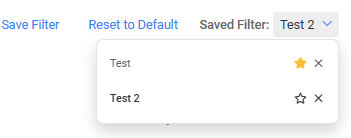
All of your saved filters appear in your Saved Filter list for easy access at any time. Your favorite filters have a yellow star next to them.