Log in to Client360 for the first time
If you enter an invalid username, invalid password, or both, Client360 displays an error message saying: Your username or password is invalid. Your account will be locked after xx attempts. Please contact your system administrator for assistance.
-
Navigate to Client360.
If you did not receive an invitation email from your client contact administrator, contact your IT department and verify that they have whitelisted client360@fiserv.com.
-
Based on the information you receive in your email, perform one of the following procedures.
 Use a verification code
-
In the browser window that appears, enter your email address and select Send verification code.
You will receive a verification code from DoNotReply@transactionverify.com. The code is valid for five minutes. If you do not receive a code, select Send new code. If you still do not receive a code, contact your IT department and verify that they have whitelisted DoNotReply@transactionverify.com.
- Enter the verification code from the email and select Verify.
-
Establish a new password.
Use a temporary password
-
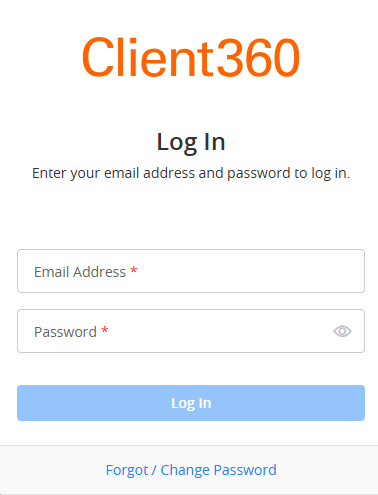
In the browser window that appears, enter your email address and temporary password.
-
Select Log in.
-
Log out of Client360.
-
On the Client360 log in screen, select Forgot / Change Password.
You will receive an email with instructions on how to reset your password.
View password requirements
Your password must be 9-12 characters in length, cannot contain your e-mail, and must contain at least three of the following:
-
One or more lowercase characters
-
One or more uppercase characters
-
One or more uppercase characters, for example, 0-9
-
One or more special characters, for example, @ # $ % ^ & * - _ + = [ ] { } | \ : ' , ? / ` ~ “ ( )
Your password cannot contain more than two consecutive identical characters.
Client360 requires that you change your password every 60 days.
-
- Log in.
-
Select your preferred multifactor authentication method.
You can update your multifactor authentication information when you Update your profile.
By default, you will not receive client communications or have the ability to create inquiries for any product. You must update your product preferences to indicate those products for which you would like to receive updates and create inquiries.
After you log in to Client360, you cannot go more than 15 minutes without any activity. If you do, your session automatically times out, and you will need to log in again. If you are in a different tab within your browser, a triangle appears on your Client360 tab when your session is about to time out.