Set Product Preferences
- From the upper-right corner of the page, select your name.
- Select Profile.
- Select the Portal Information tab.
- Select Edit.
- Update the settings as necessary.
 Individually update preference settings
Under Preferences, locate the product you would like to update. Use the search bar to quickly locate a product.
Select or clear the options to reflect your desired state.
Bulk update preference settingsUnder Bulk Preference Settings, select or clear the options to reflect your desired state after the update.
- Select the product or products you would like to update.
- Select Apply.
- Select Save.
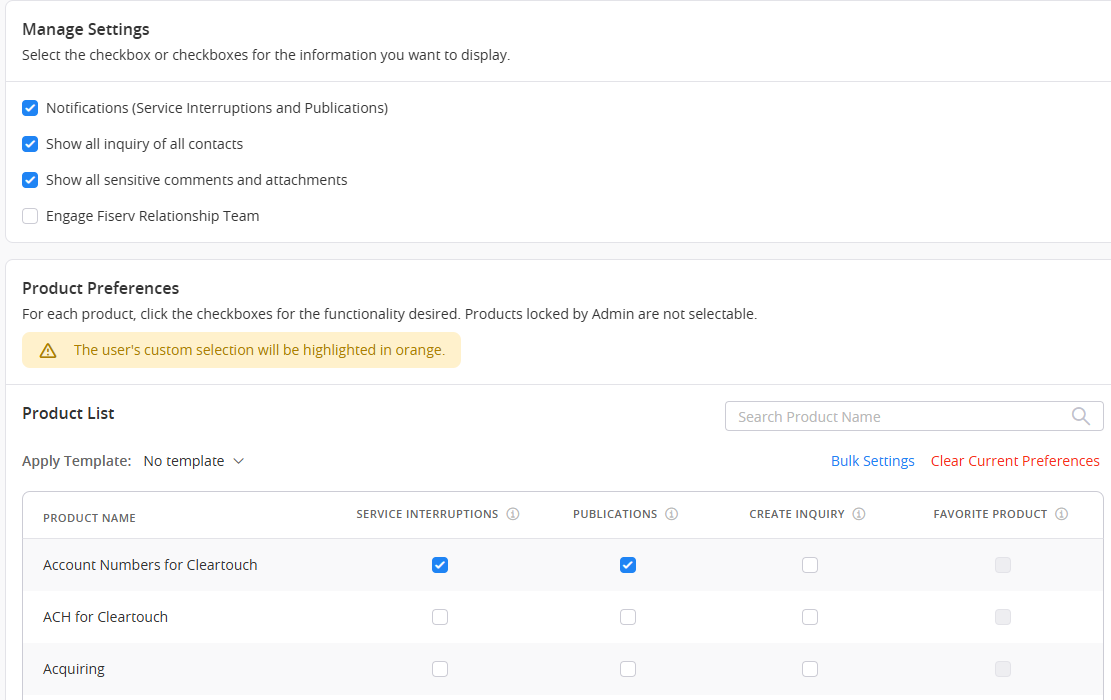
When you create an inquiry and select Update Product / Manage Favorites from the Product dropdown menu, that automatically reflects in your Product Preferences. After you update the product within the inquiry, the Create Inquiry and Favorite Product boxes for that product will be checked within Product Preferences.
Client360 uses this data to manage inquiry notifications and display preferences. Review this information regularly.
Portal Information Product Field Definitions
- Service Interruptions— Receive notifications for service problems and resolutions.
- Publications— Client communications.
- Create Inquiry— The ability to create a new inquiry. Select this option for each product for which you want to create inquiries.
- Favorite Product - Add the product as a favorite when creating an inquiry.