Navigate Client360
Client360 offers a general search and inquiry view embedded in the main page, along with an information panel. If you need to open an inquiry with client services, you can use the Inquiry Dashboard to create new, view, or close inquiries in an intuitive dashboard view.
 View landing page field definitions
Client Name: Name of the client to whom the account belongs.
Inquiries: Select to view your full Inquiry Dashboard.
Client360 Help: Select to view the Client360 help pages.
A notification appears when there are updates to Client360. To view the updates, select the Client360 Help dropdown and navigate to the What's New section.
Inquiries : Displays a list of all current inquiries. You can select one of the following tabs within this field:
-
My Inquiries: View all inquiries that you created.
-
All Inquiries: View all inquiries opened by anyone at your institution. This field only shows if you have checked Show all inquiries of all contacts in your portal settings.
-
My Watchlist: View all inquiries that you are watching.
-
New Inquiry: Create a new inquiry.
Select any of the Inquiry State tabs to view recent activity. This tells you when a user created, validated, or most recently updated an inquiry, and more.
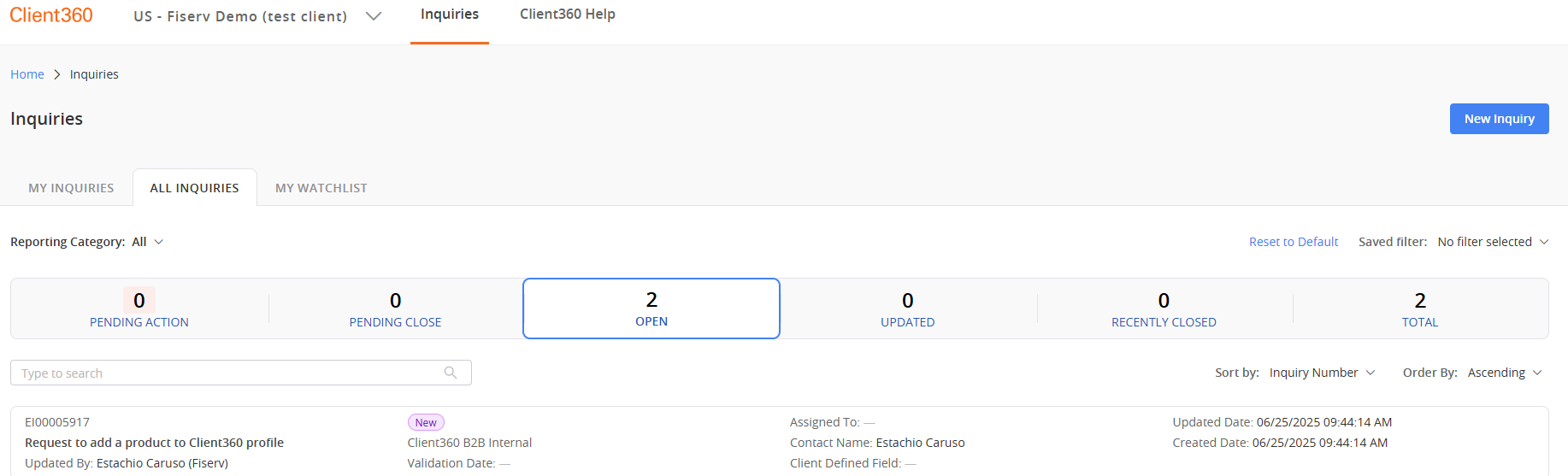
You can also select View All to open the full Inquiry Dashboard. This button performs the same function as the Inquiries button on top of the page.
View Quick Access menu field definitions
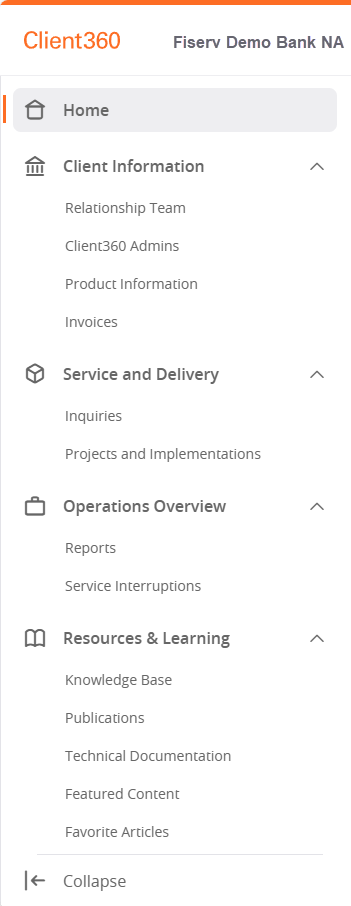
Home: Select to view the homepage.
Client Information: Select to expand and view your relationship team, Client360 admins, product information, and invoices.
Service and Delivery: Select to expand and view inquiries, projects, and implementations.
Operations Overview: Select to expand and view reports (SAP clients only) and service interruptions.
Resources & Learning: Select to expand and view the knowledge base, publications, technical documentation, featured content, and favorite articles.
Banner Message Updates
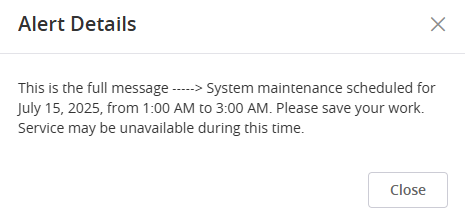
Whenever there is an update that impacts Client360, such as maintenance, Fiserv displays a banner message at the top of your landing page with information regarding that update. The banner message remains visible on the landing page until you either close it or the end date to display the message, as set by Fiserv, passes.

Select View Details to view more contextual information about the update.