Use the Inquiry Dashboard
The Inquiry Dashboard makes it easy to find and access your inquiries. To get to the dashboard, select Inquiries at the top of the home page. You can also view inquiries directly on the home page to save a click.
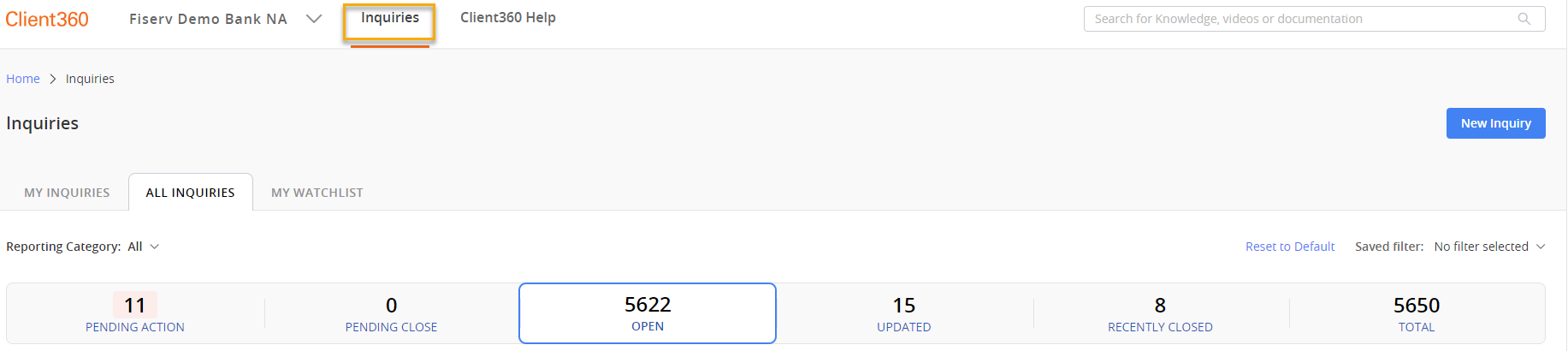
When you first navigate to the Inquiry Dashboard, you will see the following tabs at the top of the main landing page:
You can open a new inquiry from the Inquiry Dashboard by selecting New Inquiry at the top of the page and then filling out the appropriate fields.

At the top of the Inquiry Dashboard are tabs that allow you to filter inquiries based on whether you submitted them.
Tab definitions
| Tab Name | Definition |
|---|---|
| Pending Action |
Additional information is required. Please review the inquiry's comments to understand the necessary action steps. When the inquiry updates to this code, you will receive an email notification stating "The pending code on your inquiry has been updated." Inquiries in this tab will also appear in the Open tab. The following pending codes also fall under Pending Action. Pending Client Information We are close to resolving the inquiry but need more information from you first. When an inquiry updates to this code, you will receive an email notification stating "Your inquiry is pending client action." Pending Client Validation We have proposed a resolution, and we need you to test that resolution. When an inquiry updates to this code, you will receive an email notification stating "Your inquiry is pending client action." |
| Pending Close |
We have resolved your inquiry. You have 14 days to respond to the resolution before the system automatically closes it. When the inquiry updates to this code, you will receive an email notification stating "The pending code on your inquiry has been updated." |
| Open | We are working on your inquiry. You'll receive notifications as we work through the resolution process. |
| Updated |
Actions have occurred on this inquiry. Review the inquiry's Timeline to find out what changed. Inquiries that appear in this tab also appear in the Open tab. The system marks them with a small red icon in the upper right-hand corner. |
| Recently Closed |
Your inquiry was closed up to 90 days ago. You cannot reopen closed inquiries. If you need additional help regarding inquiries in this tab, you must create a new inquiry. |
| Total | All inquiries for your organization. This is where you can find closed inquiries from up to 24 months ago. |
An inquiry's status is not the same as the recent activity tab under which it appears.
Search for an Inquiry
Use the inquiry search bar to filter your dashboard based on the assigned to person, contact person, product, inquiry number, short description, or client defined field.
 Sort Inquiries
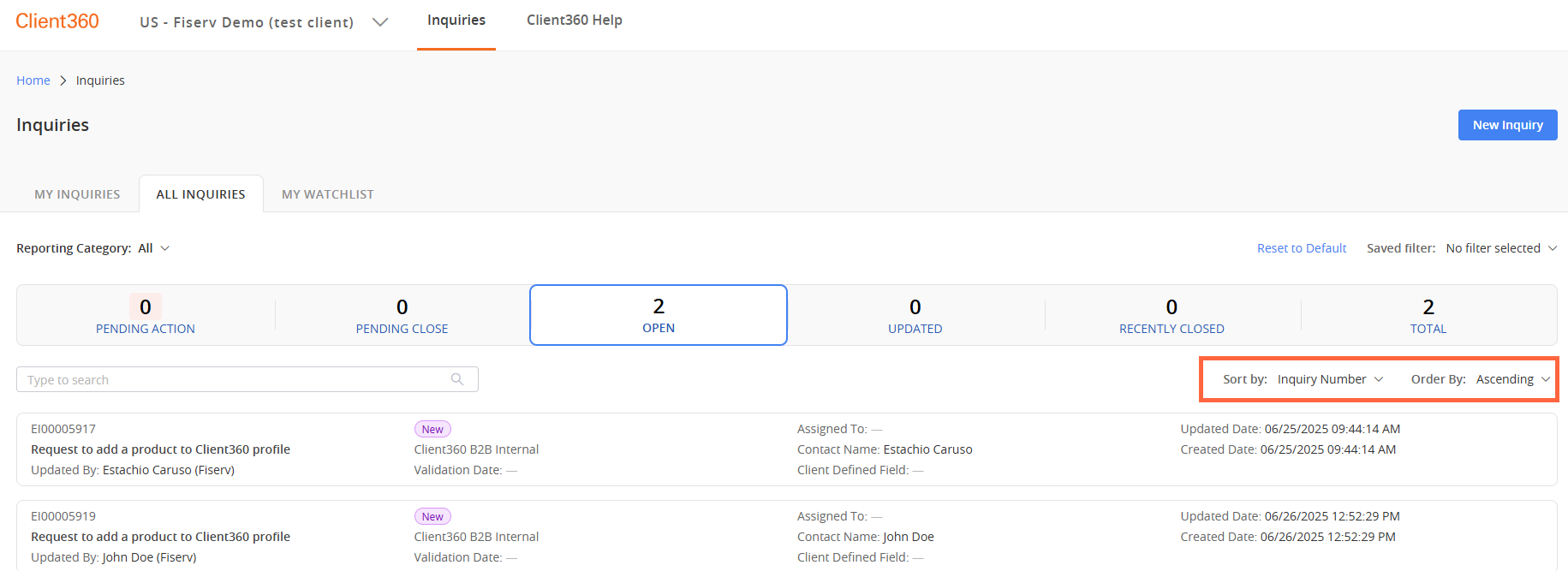
You can sort your Inquiry Dashboard based on several criteria, including Inquiry Number, Created Date, Product, State, and Updated Date. You can also filter by the following items in the Reporting Category field.
- Defect
- Use when the program is not functioning as the developers intended. Developer work is required to fix the issue.
- Enhancement
- Use when the program is functioning, but an update is needed to resolve the issue.
- Implementation
- Use when Fiserv is doing work with or for a client to establish new products, modules, or services.
- Maintenance
- Use for maintenance tasks, such as running a report for a client.
- Service
- Use for general troubleshooting and client assistance.
- Professional Services
- Use for paid assistance or follow-ups provided to current clients.
Save a Filter
When you sort and order an inquiry list, or use the Filter by option, you can save that filter for easy access later.
Perform the following steps to save a filter.
-
Sort and order the inquiry list using your desired parameters.
-
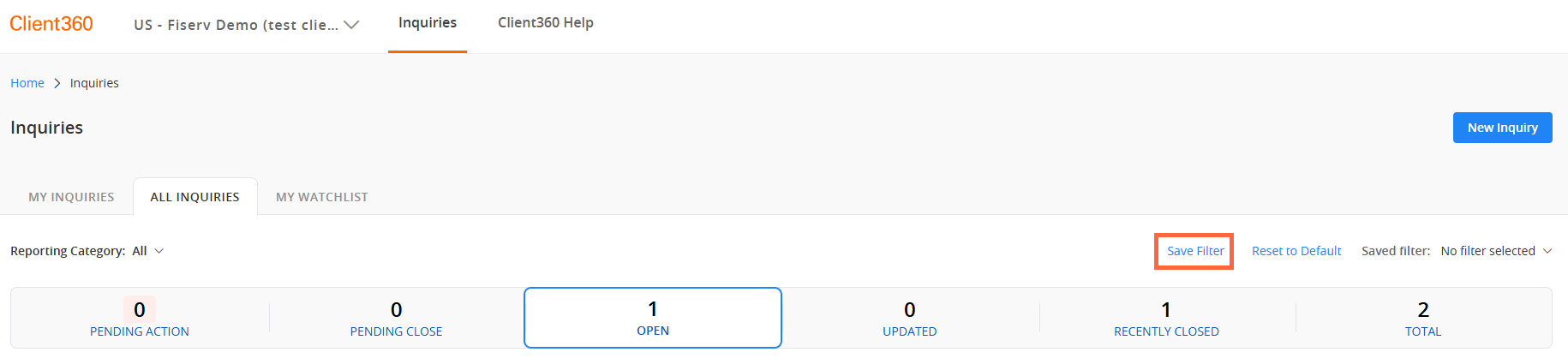
Select Save Filter.
-
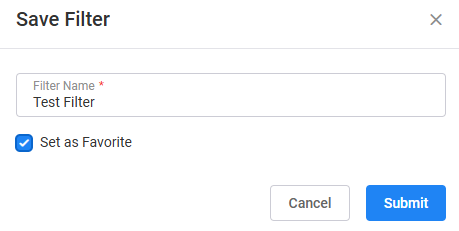
Name your filter and select Set as Favorite if you want to add the filter to your favorites list.
You can only have one favorite filter at a time. If you create a second filter and make that filter a favorite, it will remove the designation from the first filter.
-
Select Submit.
-
Repeat Steps 1 through 4 for any remaining filters you want to save.
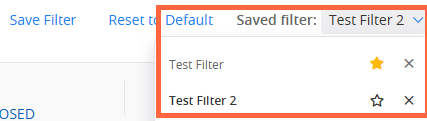
All of your saved filters appear in your Saved Filter list for easy access at any time. Your favorite filters have a yellow star next to them.