Reset your password from log in screen or within portal
Log In Screen
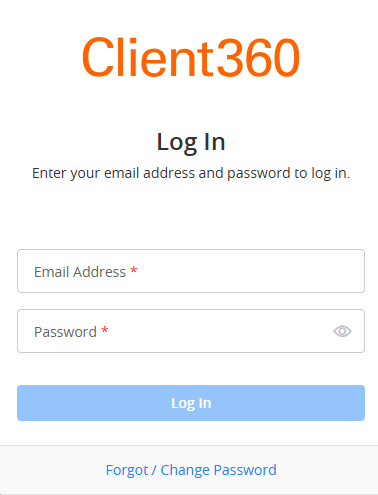
From the Log In screen, select Forgot / Change Password and then perform the following steps.
View image
-
Enter the email address you used to create your account in the Email Address field and select Next.
-
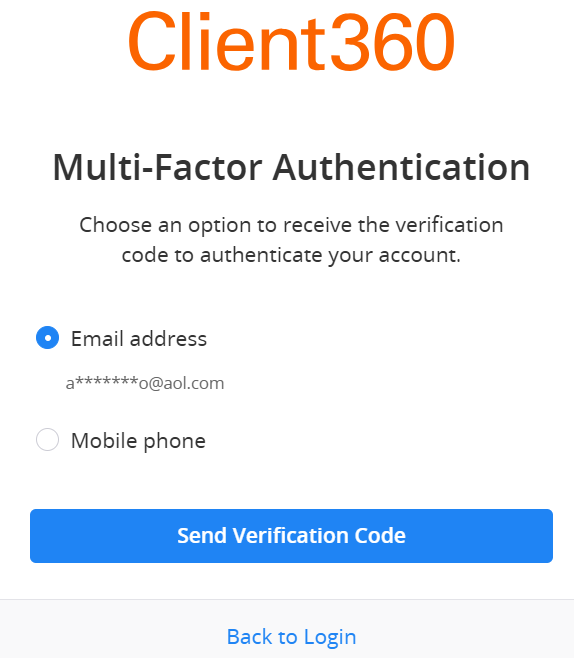
Select whether you want Client360 to send a verification code to your email address or phone number on file. Then, select Send Verification Code.
If you select Mobile phone, you also must select Call me or Text me.
-
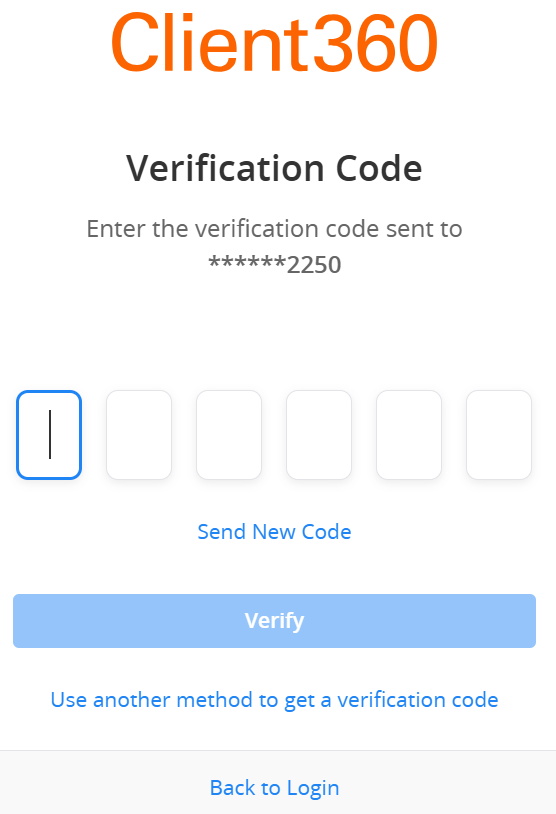
Enter the verification code you received and then select Verify.
-
Enter your new password in the New Password and Confirm New Password fields, ensuring it meets the listed requirements. You can select the eye icon in either of these fields if you want to see your password written out.
-
Select Reset Password.
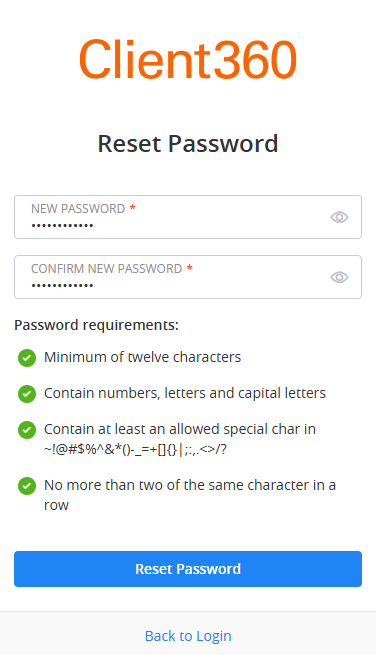
 View password requirements
Your password must be 9-12 characters in length, cannot contain your e-mail, and must contain at least three of the following:
-
One or more lowercase characters
-
One or more uppercase characters
-
One or more uppercase characters, for example, 0-9
-
One or more special characters, for example, @ # $ % ^ & * - _ + = [ ] { } | \ : ' , ? / ` ~ “ ( )
Your password cannot contain more than two consecutive identical characters.
Client360 requires that you change your password every 60 days.
Within Client360 Portal
You can also reset your password from within the Client360 portal.
-
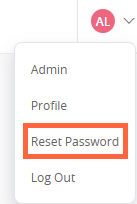
Select your initials in the upper-right corner of any page.
-
Select Reset Password.
-
Enter the verification code sent to your email address on file and select Verify.
-
Enter a new password that meets the requirements on the screen.
-
Select Reset Password.