Create and edit a profile template
Instead of individually setting product preferences for each contact, you can create a template with preferences to apply to multiple contacts.
To create a profile template:
-
In the upper-right corner of the page, select your name.
-
Select Admin.
-
Select the Profile Template tab.
-
Select Create Template.
-
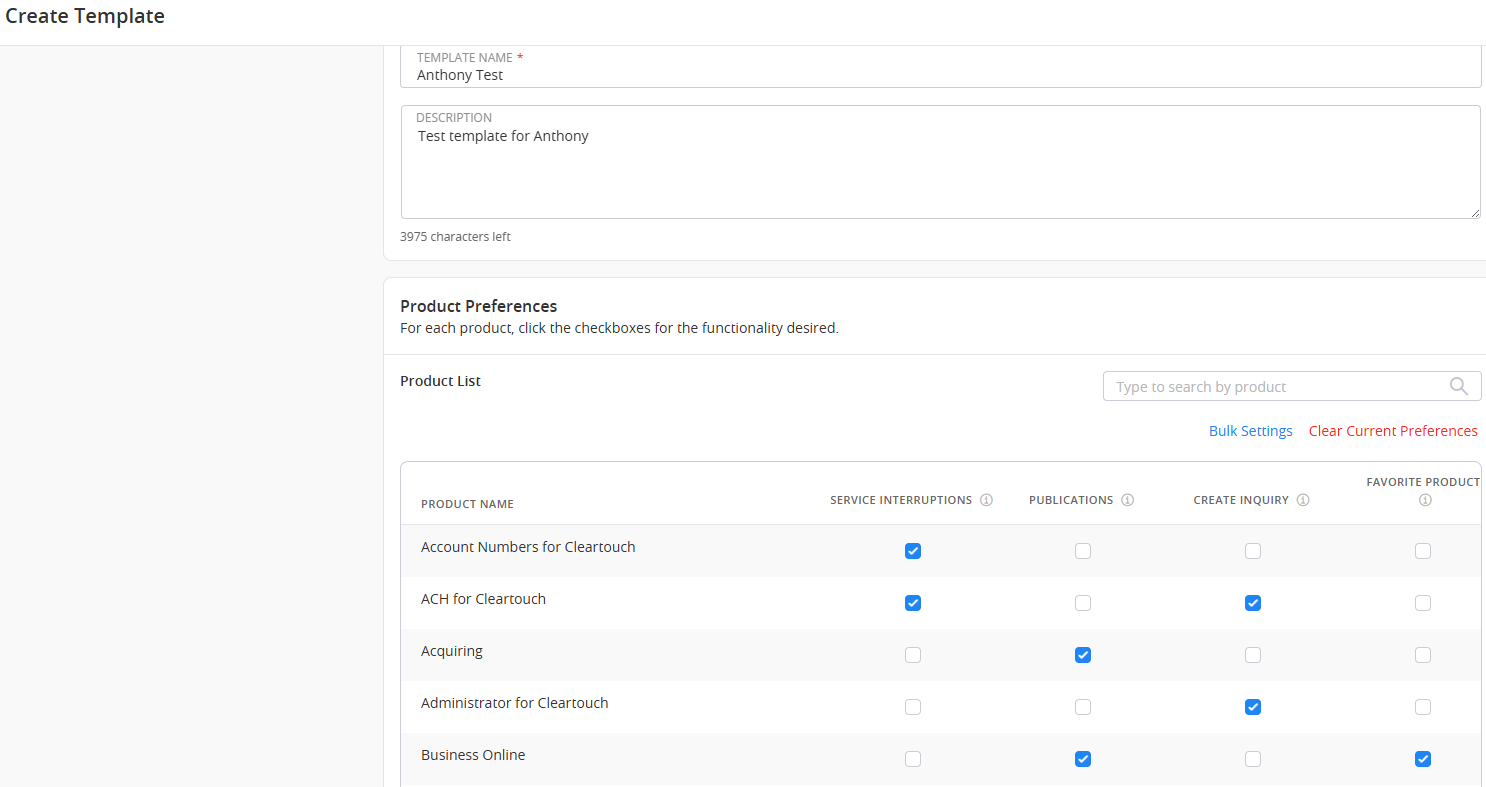
Enter a name for the template in the Template Name field.
-
Enter a description for the template in the Description field.
-
Set the product preferences for the template.
To set the same preferences for multiple products, you can select Bulk Settings and complete the steps in the dialog box. Select Save when you are finished.
-
Select Submit. The new template appears in the Template List.
 View image
Select Edit ( ) next to the template at any time to make changes. After you make your desired changes, select Submit.
When you update a template, contacts assigned to that template reflect the changes after you save.